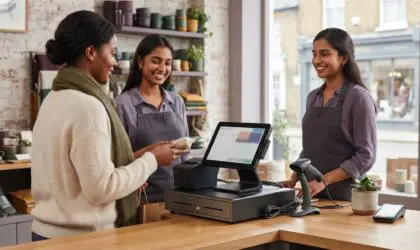

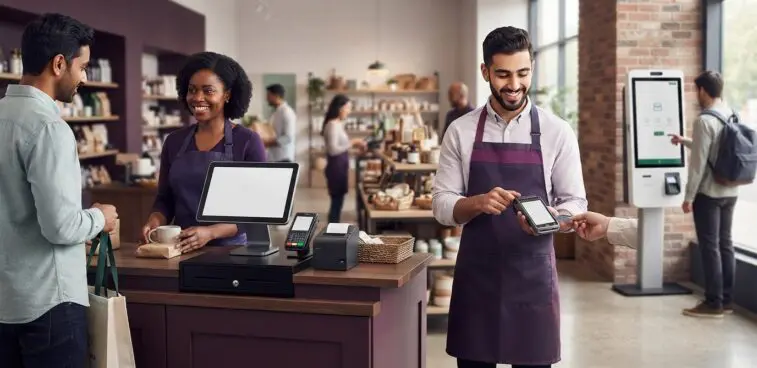
The most powerful-looking terminal isn’t necessarily the right one for your business. A useful POS terminal hardware comparison starts with the work the equipment needs to support, not specifications viewed in isolation. A busy counter, a mobile service area and a self-service point each place different demands on hardware.
It’s also easy to confuse a POS terminal with a payment terminal or a complete POS system. The POS terminal is the hardware used to run point-of-sale tasks; a payment device handles card transactions, while the wider system also involves software and connected peripherals. Understanding these roles makes it easier to see how each part fits your existing setup and daily service.
This guide gives you a practical framework for comparing terminal types, durability, design, connectivity and support. You’ll learn how to shortlist options around your workflow and service demands, and how to weigh the longer-term suitability of a setup. OXHOO supplies commercial POS hardware across the UK, with a five-year warranty and next-day on-site maintenance.
Two terminals can look similar on a counter yet support very different ways of serving customers. One may be designed for staff-led checkout at a fixed till point; another may move with staff around a venue, or let customers place and complete orders themselves. A useful POS terminal hardware comparison starts with these operational roles, then considers which format suits the space, service pattern and customer interaction.
POS terminal hardware is the physical device that staff or customers use to carry out checkout tasks. It provides the interface for actions such as viewing items and entering or confirming an order. Software provides the on-screen functions, while peripherals such as receipt printers, barcode scanners and cash drawers extend the setup. These components work together, but they are not interchangeable. A broader overview of point-of-sale systems explains how checkout devices and peripherals fit into the wider arrangement.
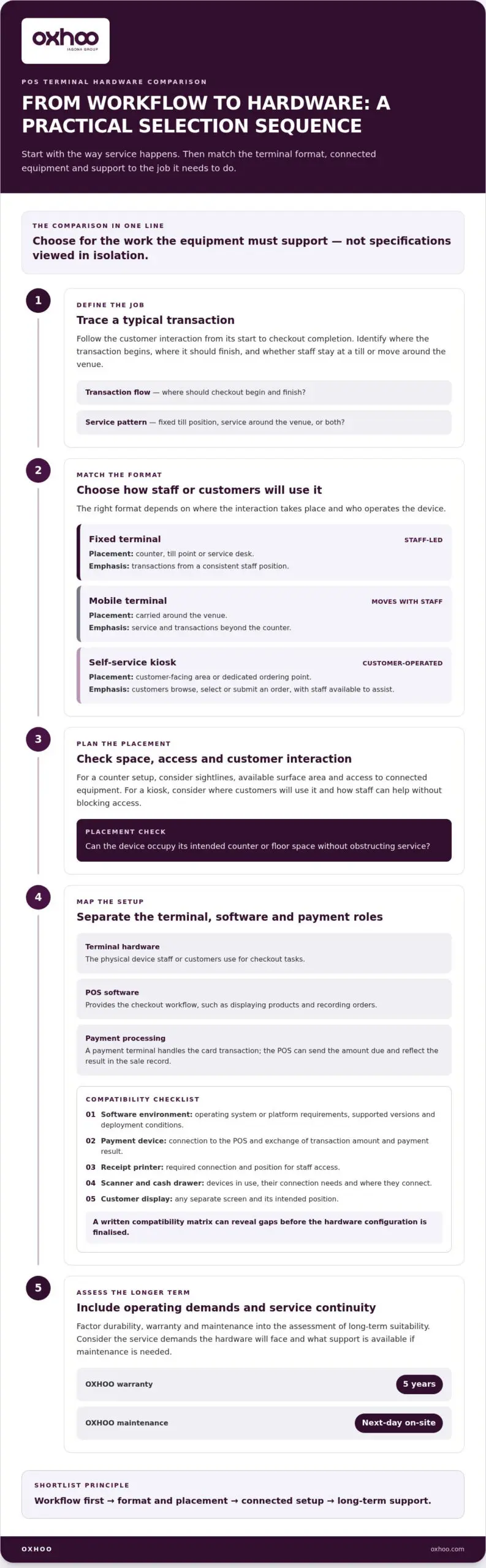
Trace a typical transaction from the first customer interaction to checkout completion. At a counter, a fixed terminal gives staff a defined working position. Consider sightlines, available surface area and access to connected equipment. If service regularly happens away from the counter, mobile hardware can let staff bring the checkout interaction closer to the customer. The point is to support movement that already happens in the workflow, not to choose mobility for its own sake.
Customer-operated hardware changes the interaction. A self-service kiosk gives customers a dedicated point to browse, select or submit an order, while a staff-led terminal keeps the transaction in an employee’s hands. Consider whether customers are expected to navigate the process independently and where the device will sit in the service space. Also plan how staff can assist without blocking the customer’s access.
| Format | Typical placement | Workflow emphasis |
|---|---|---|
| Fixed terminal | Counter, till point or service desk | Staff-led transactions from a consistent position |
| Mobile terminal | Carried by staff around the venue | Transactions and service that move beyond the counter |
| Self-service kiosk | Customer-facing area or dedicated ordering point | Customer-operated interactions with staff available for other tasks |
Use these questions to set priorities before reviewing individual hardware options:
Your answers define the role the terminal must fulfil. With that role clear, you can compare the hardware alongside the software and payment arrangements it needs to work with.
A terminal is one part of a checkout setup, not the whole solution. In a POS terminal hardware comparison, separating the physical device, the software and the payment arrangement helps show what each option includes and what must work alongside it. A terminal on its own does not provide the software workflow or payment processing.
Think in three layers. Terminal hardware is the physical device staff or customers interact with. POS software provides the checkout workflow, such as displaying products and recording orders. Payment processing handles a card transaction through the relevant payment provider. These roles can be supplied separately, even when they appear together in one checkout setup.
A POS terminal supports checkout tasks such as building an order or recording a sale. A separate payment terminal handles the card transaction. In a typical combined workflow, the POS software sends the amount due to the payment device, and the payment result can then be reflected in the sale record. Staff can manage the order on the POS terminal while the customer completes payment on dedicated hardware.
Compatibility is a practical buying criterion, not a technical footnote. Match the terminal’s operating environment to the requirements of the POS software you intend to use, then list each connected device, its required interface and its intended position. A written compatibility matrix can reveal gaps before you finalise the hardware configuration.
Keep the matrix specific: record each device, its connection type, software requirement and intended location. Then review the complete chain, from the POS terminal to its software, payment device and peripherals. A component can meet its own requirements yet still be unsuitable for the wider arrangement if its connections or operating environment don’t align.
With those criteria defined, compare OXHOO’s commercial POS hardware as part of the wider setup, rather than assessing the terminal as a standalone purchase.
Once you know the checkout role, assess how the hardware will occupy and organise the surrounding space. A format that suits one transaction journey may crowd another, particularly when staff, customers and connected devices share a counter. This stage of a POS terminal hardware comparison should consider the complete workstation, not just the screen or terminal.
Countertop terminals suit a defined service point where staff need a consistent position for processing transactions. Mobile hardware supports staff who move around a venue and need to bring checkout closer to the customer. Kiosks put the interaction in the customer’s hands, making them relevant to suitable ordering or service journeys. The right format depends on the layout, staffing pattern and transaction journey, not a general ranking of device types.
| Format | Placement and interaction | Considerations for the layout |
|---|---|---|
| Countertop | Fixed service point, usually staff-led | Allow room for staff access and any connected equipment |
| Mobile | Moves with staff for service around the venue | Consider where staff will use it and how it fits into their movement |
| Kiosk | Dedicated customer-facing position | Plan for customer access, visibility and space around the unit |
List the devices the workstation needs before comparing terminal configurations. A receipt printer, barcode scanner, cash drawer or customer display takes up space and may require a specific connection. Consider who uses each item and at what point in the transaction. A staff-facing screen should be easy to see and reach from the working position; a customer display or kiosk needs a clear sightline and comfortable access.
Configuration also affects how the setup can be arranged. An all-in-one installation brings key functions together in a single unit, which can simplify the physical layout. A modular arrangement uses separate components, allowing the terminal and peripherals to be positioned around the working process. That flexibility also means more individual devices and connections to plan.
Sketch the counter or service area and mark the terminal, peripherals, staff position and customer approach. This can expose awkward reach, blocked visibility or problematic cable routes before you settle on a configuration.
A terminal’s suitability depends on more than whether it can handle a transaction. In a POS terminal hardware comparison, weigh expected daily use, transaction pace and the physical setting against the consequences of a fault. A device in a busy service area may be used throughout the day, while a quieter workstation has a different pattern of demand. Choose hardware that fits the work rather than simply opting for the most feature-rich model.
Consider how long the terminal will be in use, how many checkout interactions it must support and what staff need to do around it. Review its physical fit in the actual environment, including screen position, ease of use and the space available for routine tasks. A comfortable, well-placed terminal can support an orderly workstation; a poor fit may add friction to everyday service.
These practical checks help you assess resilience against real operating conditions, rather than relying on specifications alone. For equipment intended for demanding, all-day commercial operation, include usage patterns and the consequences of downtime in your evaluation.
Warranty and maintenance arrangements shape how a business can plan for equipment issues. Compare the stated warranty period and coverage with the maintenance response, the work included and who coordinates the next steps if a terminal needs attention. Clear responsibilities make planning easier, but no support arrangement should be treated as a promise that faults will not interrupt service.
OXHOO commercial terminals have a five-year warranty and next-day on-site maintenance. Include these support terms in your evaluation alongside how the hardware fits the workflow and how your business would manage checkout if a device needs attention. They do not guarantee uninterrupted operation or immediate repair.
Judge whole-life value by considering the demands the equipment is designed for, the support available and the disruption a poor fit or replacement could create. Initial cost is not the only relevant factor if the setup doesn’t suit daily operations. Compare the full picture, including how responsibilities are divided between hardware, software and other parts of the checkout arrangement.
To assess hardware against these durability and support criteria, explore OXHOO’s commercial POS hardware as part of your shortlist.
A considered shortlist turns the earlier comparisons into a practical decision. Instead of comparing devices on isolated features, apply the same operational criteria to each option: what staff need to do, where transactions happen, how customers interact and what support comes with the hardware. This makes trade-offs clearer and keeps optional features from overshadowing essentials.
Capture the intended use before reviewing configurations. Record transaction types, staff roles, customer interaction and placement, then rank essential hardware and integration needs above preferences. Apply the same questions to every option so the final comparison reflects your operation, not different assumptions for each setup.
Then apply the shortlist to your venue. In retail, the comparison may centre on an organised till area and how staff handle transactions. Hospitality operations may need to account for both fixed service points and staff movement around the venue. Pharmacies can assess how the terminal fits into a staff-led service area, while leisure venues may weigh counter-based transactions against self-service or mobile interactions. In warehousing or trade distribution, front-counter order terminals must coordinate seamlessly with busy dispatch environments—where operations handling products at scale often work with specialists like Phoenix Handling Solutions Limited for palletising and packaging machinery. These are starting points; the right priorities depend on the actual workflow and layout.
OXHOO supplies commercial EPOS terminals, mobile POS hardware and customised kiosks for businesses in retail, hospitality, pharmacies and leisure. Its hardware is designed for demanding, all-day commercial operation, with refined design considered alongside practical fit. OXHOO terminals have a five-year warranty and next-day on-site maintenance, giving decision-makers defined support terms to include in their planning.
Keep the scope clear as you finalise the brief: assess the hardware in relation to the POS software and payment arrangements your business uses, rather than assuming these are part of the terminal. A sound shortlist brings the physical setup, operational requirements and support considerations together.
To move from comparison to a considered hardware choice, discuss your operational brief and the setup that best fits your requirements with OXHOO.
A POS terminal hardware comparison is most useful when it leads to a clear operational brief. Before deciding, consider what you want checkout to feel like for staff and customers: straightforward at a service point, more flexible across a venue, or centred on customer self-service. That perspective helps distinguish a setup that merely fits the space from one that supports how your business serves customers.
Bring your preferred format, intended placement and essential requirements together in a concise brief. This gives the hardware discussion a practical focus and creates a stronger basis for choosing a configuration that suits the first customer interaction as well as everyday use.
Discuss a commercial hardware solution with OXHOO and take the next step towards a setup shaped around your operation. A clear brief can turn a complex decision into a confident one.
A POS terminal is the physical device used at checkout, while a POS system is the wider setup that supports sales workflows. It may combine hardware with software and connect to payment devices or peripherals. For example, a shop’s setup might include a terminal, sales software, a separate card machine and a receipt printer. Compare the terminal with the software requirements and tasks your team needs to complete, rather than assuming one device represents the whole system.
Not necessarily. The terminal is the physical equipment; POS software provides the functions used to manage transactions and other workflows. Treat them as separate parts of your setup and check that the software can run in the terminal’s operating environment. Set out hardware and software requirements separately when planning a new installation or replacement, and account for each as a distinct part of the setup.
No. A POS terminal supports the wider checkout workflow, while a card machine handles payment transactions. A business might use both: staff build a sale on the POS terminal, then take payment through a separate device. Some equipment may combine functions, but appearance alone doesn’t establish what each part does. Map the steps in your transaction and identify which device manages the sale and which handles payment.
It depends on the software’s technical requirements and the terminal configuration. Before choosing hardware, note the supported operating environment, required connections and any other conditions specified by the software. Then compare those requirements with the proposed terminal. This is a key step in a POS terminal hardware comparison, particularly if you’re replacing only one part of an established setup. Assess hardware selection and software requirements separately.
A checkout setup may use a barcode scanner, receipt printer, cash drawer or customer-facing display. Which devices are appropriate depends on the tasks staff perform and the terminal’s available connections. For example, a till that needs to scan items and print receipts has different peripheral requirements from a display-only customer interaction point. List each device, its purpose and where it will sit before finalising the configuration. Confirm which peripherals are included in the selected setup.
Choose according to where transactions happen, not business size alone. A countertop terminal may suit a stable till where staff process sales from one position. Mobile hardware can suit a service pattern where staff move around the venue and bring checkout closer to customers. Compare the intended placement, staff movement, software requirements and peripherals together. For example, a mobile workflow may change where staff need access to payment equipment or other connected devices.
Compare the warranty duration, maintenance available and stated response arrangement, then consider how your team would manage equipment issues. These details help with planning, but they don’t guarantee uninterrupted service or a particular repair outcome. OXHOO’s commercial hardware products have a five-year warranty alongside next-day on-site maintenance. Keep those terms distinct: warranty and maintenance are useful points for assessing support, not a promise of round-the-clock emergency assistance.